Aura CRM is the workspace for K-12 program delivery: school Accounts, the Contacts who work there, and the Programs running this year.
You need a user. There is no self-serve signup on the sign-in screen.
Sign in, find your way around the shell, and know what Aura is for.
Aura CRM is the workspace for K-12 program delivery: school Accounts, the Contacts who work there, and the Programs running this year.
You need a user. There is no self-serve signup on the sign-in screen.
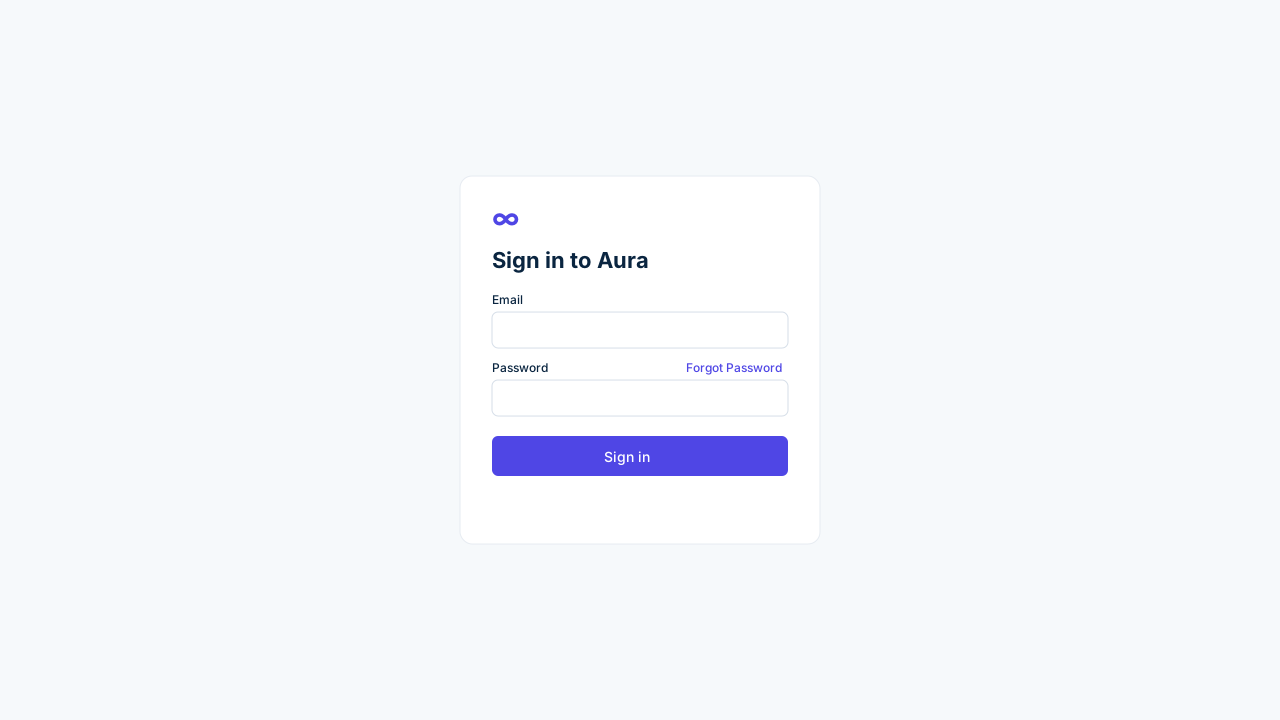
Use Forgot Password if you cannot sign in. Reset mail only works for a real mailbox — not example.com demo addresses.
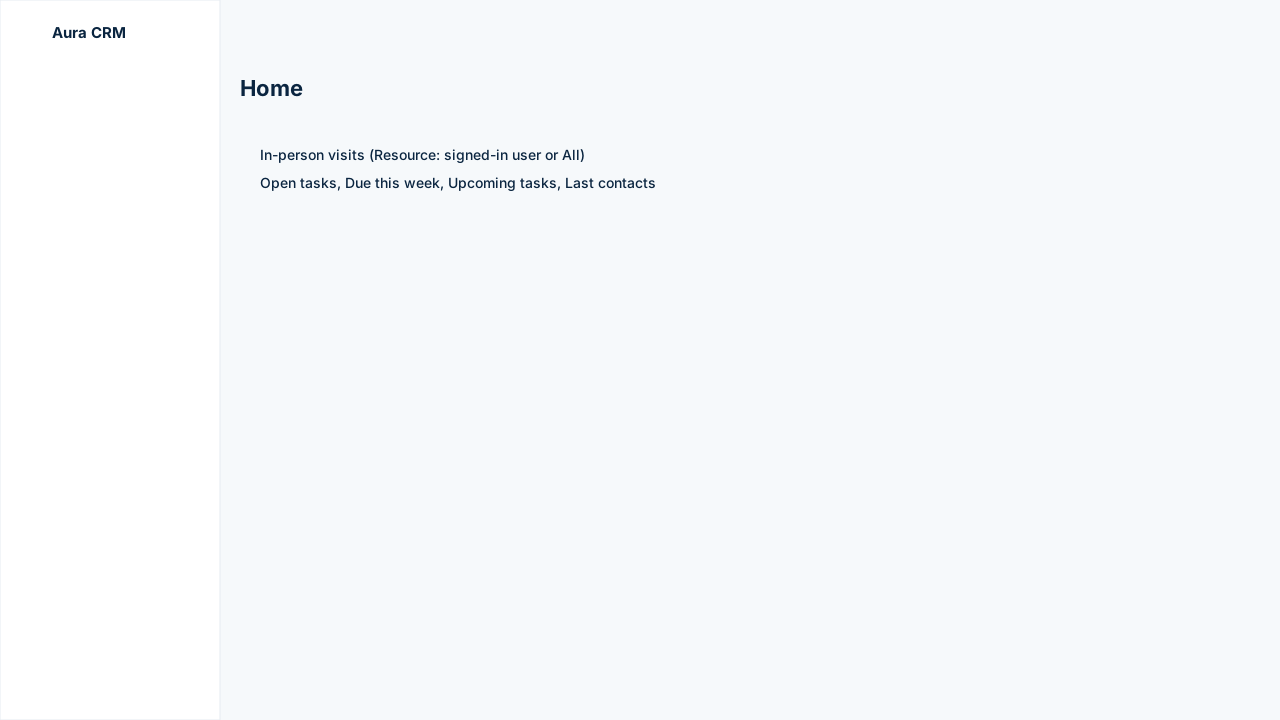
After sign-in you land on Home. The browser keeps the session. Use the sign-out icon next to your name when you are done.
The app fills the window. The left rail and top bar stay put; the page in the middle scrolls.
| Control | What it does |
|---|---|
| Aura CRM mark | Stays in the rail. Does not navigate on its own. |
| Home / Accounts / Contacts / Programs | Primary modules |
| Settings | A heading at the bottom of the rail. Under it: Email, Help/FAQ, Users, Access, Module settings, Activity log, Issues, Recycle bin. Not your profile |
| Search | Live jump to accounts, contacts, and programs. Shortcut: ⌘K / Ctrl+K |
| + | Quick create: Account, Contact, Program, Task, Note |
| User chip | Opens your Profile |
| Sign out | Ends the Auth session |
| Bug button | Bottom-right. Files a GitHub issue |
Collapse the rail with the chevron next to the mark. Icons remain. Aura remembers that choice in this browser.
If a page is empty, the header + on that list creates a record for that module.
Loading…